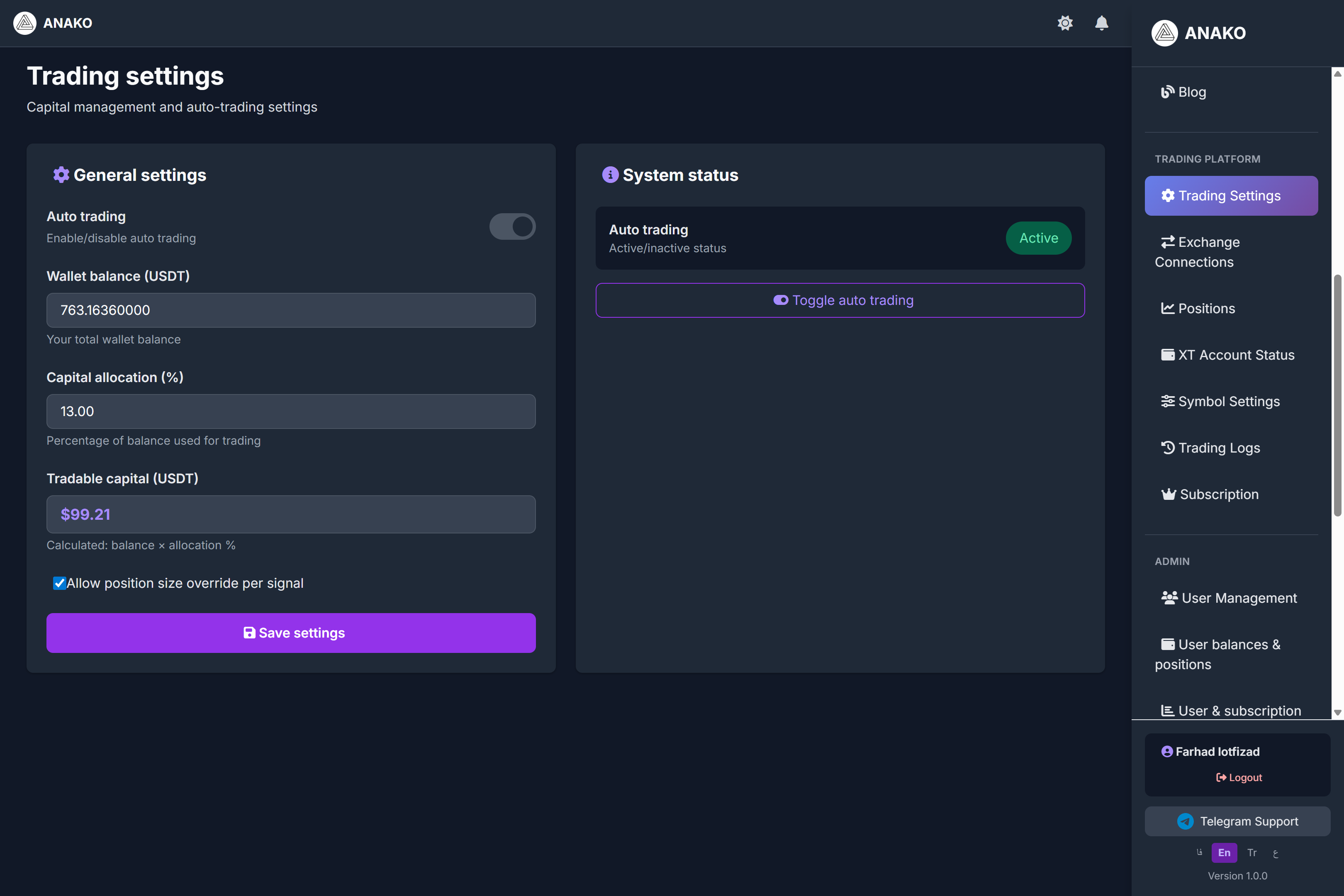
1️⃣ Trading Settings Section (Capital Management)
This page is actually the heart of the system's risk management. The educational content could be written as follows:
Trading Settings – Trading Configuration
In this section, users can set up how to manage capital and activate automated trading.
Auto Trading
This option is used to enable or disable the ANAKO automated trading system.
If enabled, the system will automatically execute valid signals on the user’s account.
Wallet Balance
Displays the user's total account balance in the connected exchange.
Capital Allocation (%)
The user specifies what percentage of capital should be used for trading.
Example:
Total Capital:
763 USDT
If the capital allocation is 13%:
Tradable Capital:
99 USDT
The system manages all trades only with this amount to control risk.
Allow position size override per signal
If enabled, the system can adjust the position size based on the strength of the signal.
2️⃣ Exchange Connections
This section is one of the most important parts of the system.
Exchange Connections
In this section, users can connect their exchange account to ANAKO.
Currently, the platform supports:
XT Futures
is supported.
Users must enter the following:
-
API Key
-
API Secret
After connecting, ANAKO can:
-
Receive market data
-
Execute trades
-
Manage positions
-
Place orders
Automatically.
Important security note:
Users must, when creating API on the exchange:
✔ Enable only Trade permission
❌ Do not enable Withdrawal permission
3️⃣ Trading Positions (Positions)
This page is designed to view and manage active trades.
Trading Positions
In this section, users can see all open and closed trades.
Displayed information includes:
Symbol
Direction (Long / Short)
Entry Price
Stop Loss
Take Profit levels
Current Price
Profit / Loss
This section helps users to monitor the performance of signals in real-time.
4️⃣ XT Account Status (Exchange Account Status)
This page displays direct information of the user's account on the exchange.
Account Status
Information displayed includes:
Wallet Balance
Total account balance
Available Margin
Capital available for trading
Margin Used
Capital involved in active trades
Frozen Orders
Capital locked in open orders
5️⃣ Symbol Settings (Settings for Each Currency)
This is one of the system's professional features.
Symbol Settings
Users can define separate settings for each trading symbol.
For each currency, you can specify:
-
Enable or disable trading
-
Percentage of dedicated capital
-
Maximum leverage
-
Maximum trade volume
This feature helps users personalize their risk management strategy.
6️⃣ Trading Logs
This section is designed for transparency and system monitoring.
Trading Logs
All system activities are recorded in this section.
For example:
-
Opening a position
-
Closing a trade
-
System errors
-
Warnings
These logs help users thoroughly review the system’s performance.